Start here: email clients@prekindle.com
Our Client Success team will build your first seat maps and event templates with you. After that, you can copy and adjust them yourself, and setting up each new event takes minutes.
This playbook covers the seven reserved seating topics you'll use most. Jump to the one you need. Each topic lists what to do, where to find it, and links to the Help Center articles with more detail.
7 topics
What's Inside
Start here
Getting started
Email clients@prekindle.com. We'll build your first seat maps and templates.
Seat maps
Create a seat map
Copy one of Prekindle's builds and adjust it for each layout you run.
Seat maps
Edit, organize, and archive
Find, rename, and archive charts so the right map is easy to pick.
Events
Build from a seat map
Start with a blank map, then add price levels, holds, and kills.
Events
Build from a template
Price levels and kills are already set. Review them and go.
Seat management
Use Event Manager
Assign price levels, place holds, set kills, and keep GA counts matched.
Guest list
Add guests
Assign guests to seats or GA areas, then send their tickets when you're ready.
Four Rules for Every Reserved Event
Following these four rules prevents most reserved seating problems.
Copy before you change
You can't edit a map that's attached to an event. Copy the chart, change the copy, then email us to resync the event.
Keep inventory matched
The capacity in the Seats tab must match the capacity on the map in Event Manager. If they don't, you can oversell.
Batch your kills
You can save kills only 10 times per event per day. Make all your changes first, then click Apply Changes once.
Use templates for repeat layouts
If you run the same layout and pricing often, ask us to turn it into a template so every new event starts already set up.
Key Terms
The words you'll see throughout reserved seating.
| Seating chart / seat map | The layout of your venue: sections, rows, seats, and GA areas. Your charts are in Preferences; Seating Charts. |
| Template | A saved event setup that already has a seat map, price levels, and kills. Use it to create repeat events quickly. |
| Price level | A price tier, such as Pit, Terrace, or Lawn. Each seat or section you sell is assigned a price level. |
| Hold | Seats set aside and not for sale, such as seats for the artist, production, sponsors, or accessible seating. You can release held seats for sale later. |
| Kill | Seats taken off sale entirely, such as seats with a blocked view or seats removed for the sound board. Pausing a section also counts as a kill. |
| GA Area | A general admission area on the map, such as a pit or lawn, with a capacity instead of numbered seats. Can also be used for tables, suites, or VIP and upgrade capacities. |
| Event Manager | The tool where you assign price levels, place holds, and set kills. Open it from Sales; Seats; Event Manager. |
| Manifest | A downloadable list of every seat on the event. Download it from Sales; Seats. |
Start Here
Getting Started
Before your first reserved event goes on sale.
What to do
- Email clients@prekindle.com. Tell us your venue and each layout you run, such as fully reserved, GA pit with reserved terraces, or GA only.
- Send us what we need to build your map. Use the list below.
- Tell us which layouts you use most. We'll turn those into templates.
- Find your charts. Go to Preferences; Seating Charts. Your new charts, older (legacy) maps, and static image maps are all on this page. To add a static image map, email us.
What to send us
- A venue diagram or your current seat map including the stage, bars, exits, bathrooms
- Section names, row letters, and seat numbers
- Tables and table names
- Each General Admission area and its maximum capacity
- Accessible and companion seat locations
- Your price zones (which sections sell at which price)
- Seats you always hold or kill, such as the sound board, production, or camera positions
- The layouts you reuse most
- Branding and logos you'd like to include on the map
Why it matters
The General Admission capacity built into your map is the most you can sell in that area. If the map is built right the first time, every event you create from it is correct too.
Learn how
Getting Started with Reserved Seating 2.0
Seat Maps
Create a Seat Map
Start from a Prekindle build and make it your own.
What to do
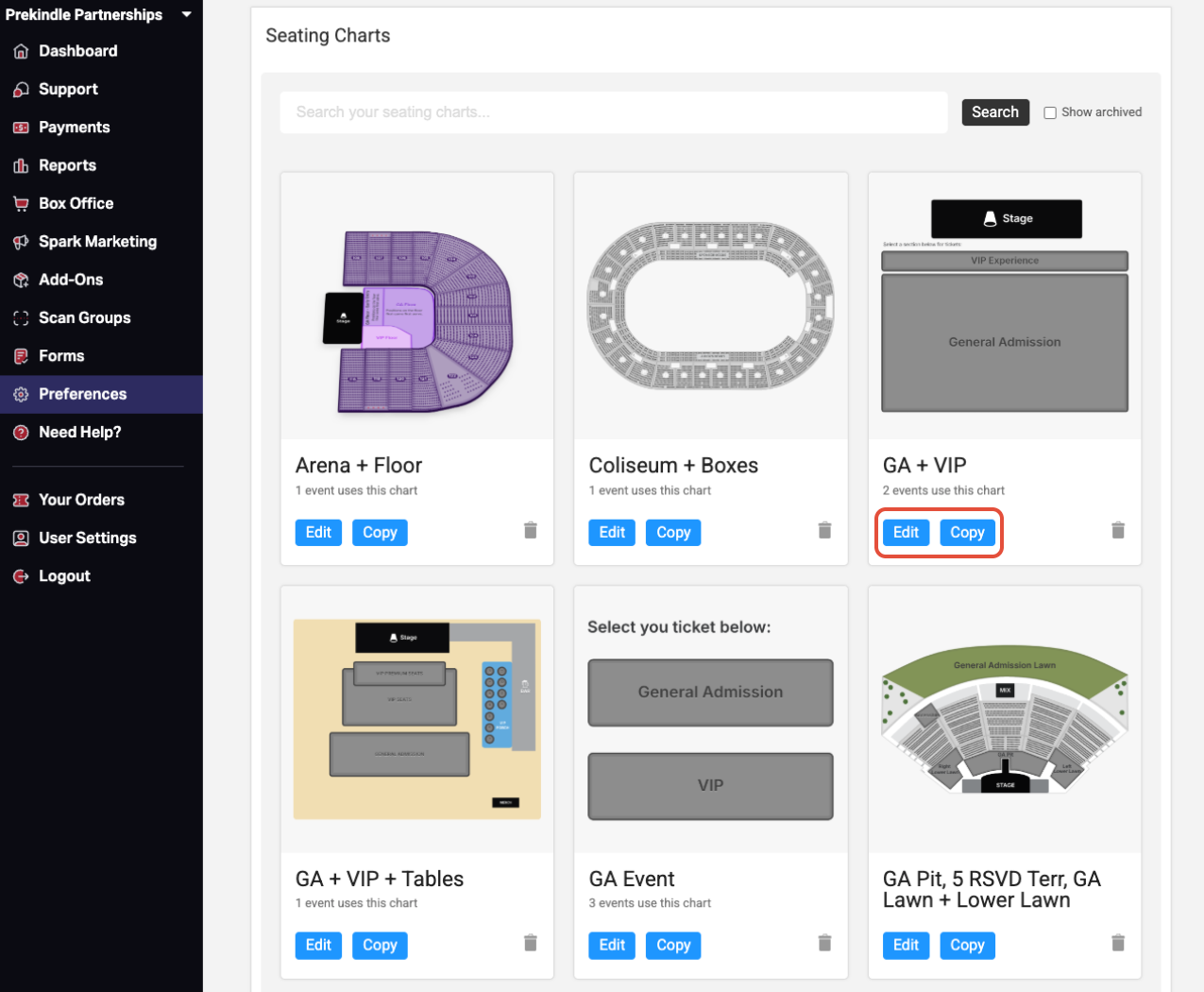
- Go to Preferences; Seating Charts.
- Find the Prekindle-built chart closest to the layout you need and click Copy.
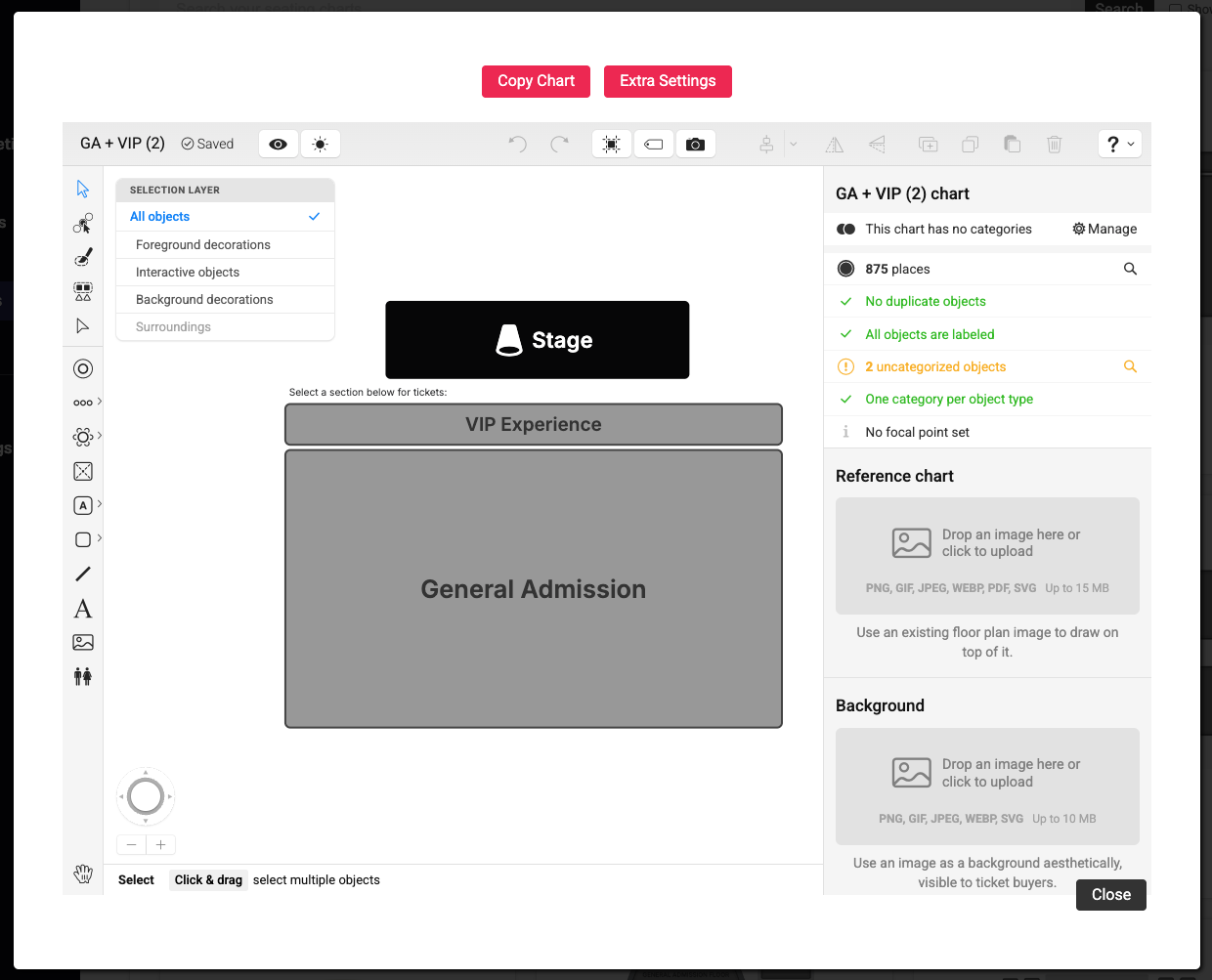
- On the new copy, click Edit to open the chart editor.
- Make your changes, such as renaming sections, changing GA areas, or switching a section between reserved and GA.
- Give the copy a clear name. See the naming tip in Edit, Organize, and Archive Seat Maps below.
- Save your changes. The chart is now ready to use for events.
Why it matters
Copying a chart keeps the one Prekindle built unchanged, so you can always go back to it. Each copy is yours to change as often as you need.
Seat Maps
Edit, Organize, and Archive Seat Maps
Keep your chart library clean so the right map is easy to find. Manage it all from Preferences; Seating Charts.
Find a chart
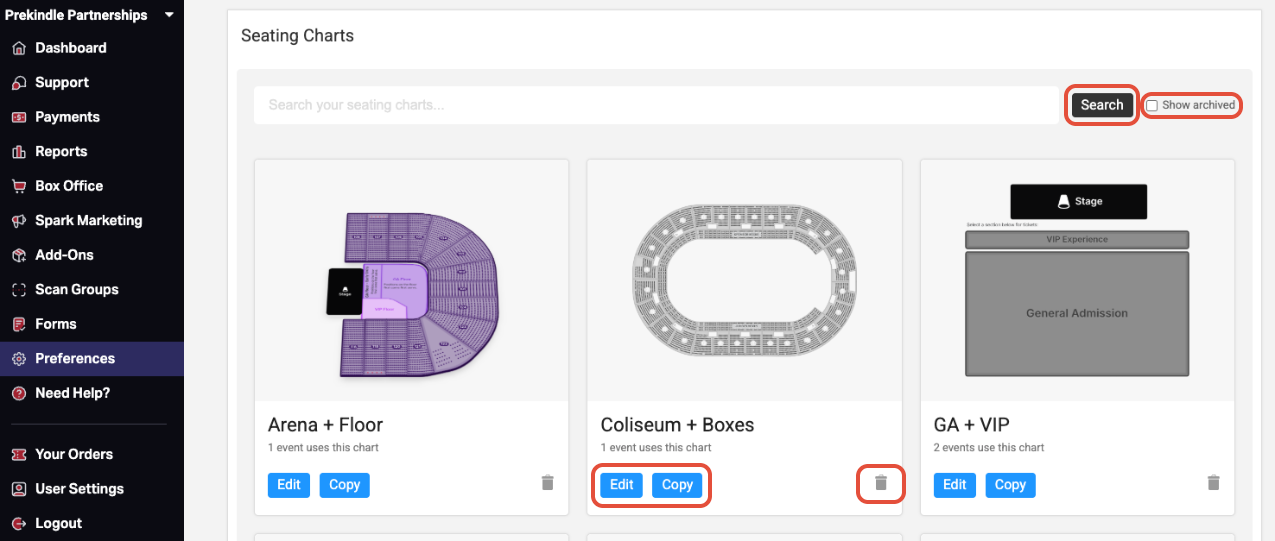
Type part of the chart's name in Search your seating charts and click Search.
Edit a chart
Click Edit on the chart card. If the chart is already on an event, copy it and edit the copy instead.
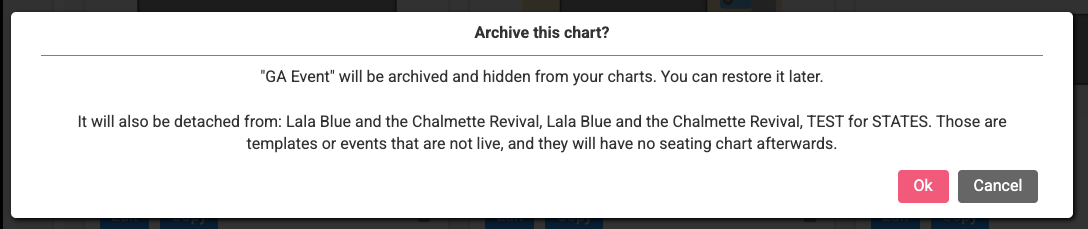
Archive a chart
Click the trash icon on the chart card to archive it. To see archived charts, check Show archived.
Reading a chart card
- "X events use this chart" shows how many events use the chart.
- "In use by live event(s), so it cannot be archived" means the chart is on an event that hasn't happened yet. It has no trash icon.
- Edit opens the chart. Copy makes a duplicate.
- The trash icon archives the chart.
Naming tip
Name seating charts clearly and consistently using the venue or room name plus the specific layout or configuration.
GA Pit + GA Standing- 5,500 Cap
When you make a new version of a chart, add a version number like (v2) to the name.
Keep your library organized
- Leave Prekindle's builds unchanged. Copy them and change the copy, so you always have a clean starting point.
- Use one naming style for every chart. Anyone on your team should be able to pick the right map from the name alone.
- Archive charts you no longer use, such as last season's layouts or test copies, so the list only shows what's current.
- Check the event count before you archive. If a chart shows "events use this chart," make sure you don't need it for upcoming events.
Already on an event? Don't edit it.
You can't edit a map that's attached to an event. Copy it, make your changes to the copy, then email clients@prekindle.com so we can resync the event to the new map.
What "MISSING" means
A chart marked MISSING no longer exists, but events still use it. Those events can't sync seats until the chart is restored or the events are moved to another chart. Email clients@prekindle.com to fix it.
Events
Build an Event from a Seat Map
Best for new layouts and one-off events.
What to do
- Open the Event Creation Wizard and select Use Template.
- When prompted, choose SeatsIO Seating Chart.
- Select your seat map and click Start.
- Fill in Step 1 (event details).
- Review Step 2. You'll set many seating options later, on the event dashboard.
- Complete Step 3 and click Finish.
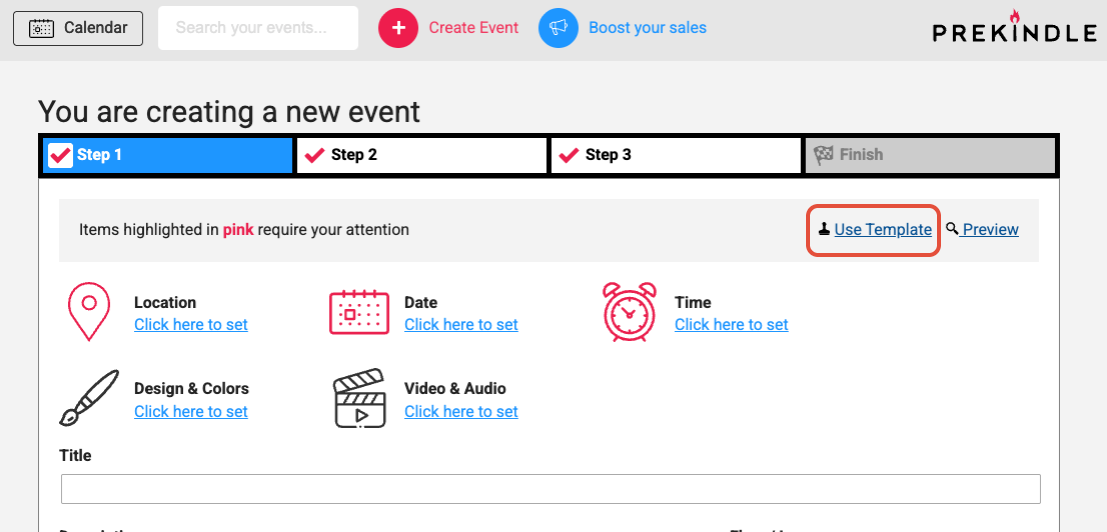
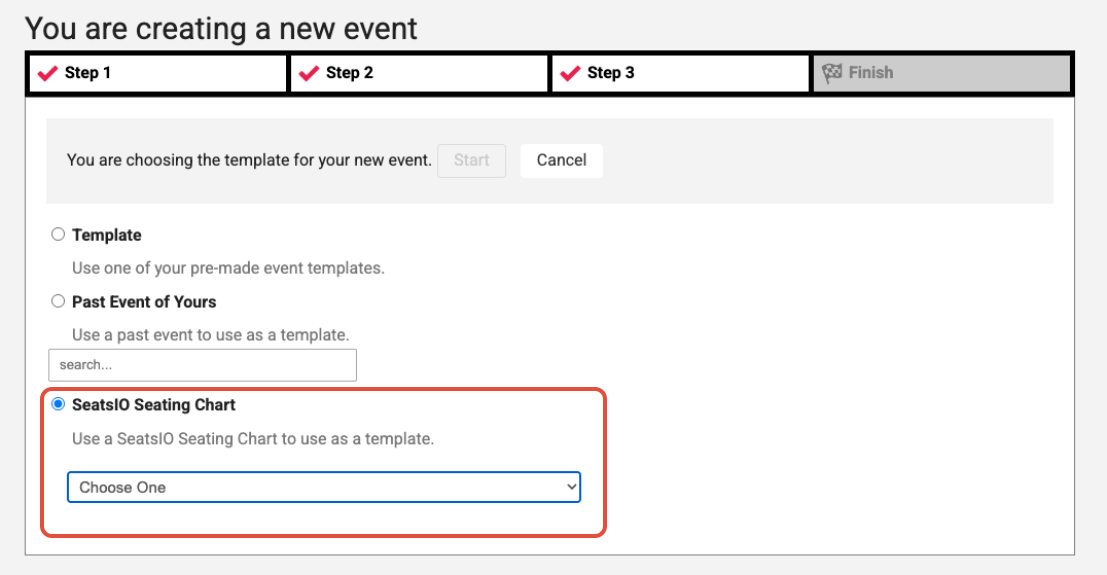
Your map starts blank. Finish setup before on-sale.
When you create an event from a seat map, it has no price levels, holds, or kills yet. From the event dashboard:
- Add your price levels.
- Assign price levels, place holds, and set kills in Event Manager (see Use Event Manager below).
- Set capacities and purchase quantities in Sales; Seats.
- Confirm the correct chart is attached in Sales; Price Levels.
Where to find it
Event Creation WizardSales; Price LevelsSales; SeatsEvent Manager
Heads up
Don't change the seat map dropdown in Sales; Price Levels yourself. To switch an event to a different map, email us.
Learn how
Getting Started with Reserved Seating 2.0
Events
Build an Event from a Template
The fastest setup for layouts you run again and again.
What to do
- Open the Event Creation Wizard and select Use Template.
- Choose your saved reserved seating template and click Start.
- Fill in Steps 1 to 3 and click Finish.
- Review the event before it goes on sale. Use the list below.
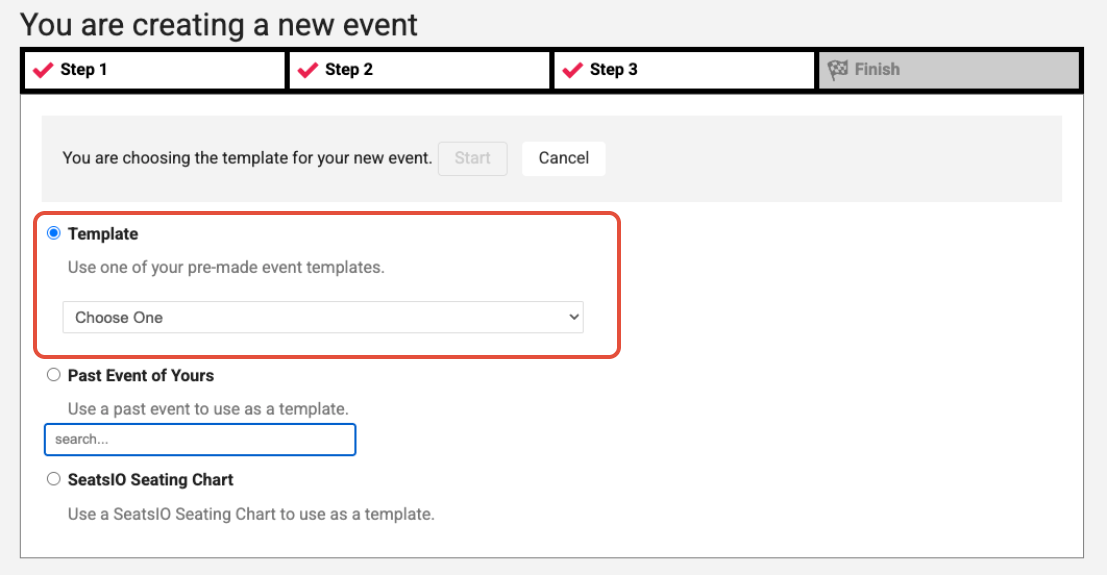
Your price levels and kills are already set. Check them for this show.
- Update ticket prices if this show is priced differently
- Add holds for this show, such as artist, production, or sponsor seats
- Check that capacities in Sales; Seats match Event Manager
- Check the purchase quantities for each section in Sales; Seats
Template or seat map: which should you use?
| From a template | From a seat map | |
|---|---|---|
| Starts with | Price levels and kills already set | A blank map |
| Best for | Layouts you run often | New layouts and one-off events |
| Setup time | Minutes | Longer, because you build pricing and kills yourself |
| After you click Finish | Review, add show holds, and check GA counts | Add price levels, assign them, then add holds and kills |
Need a new template?
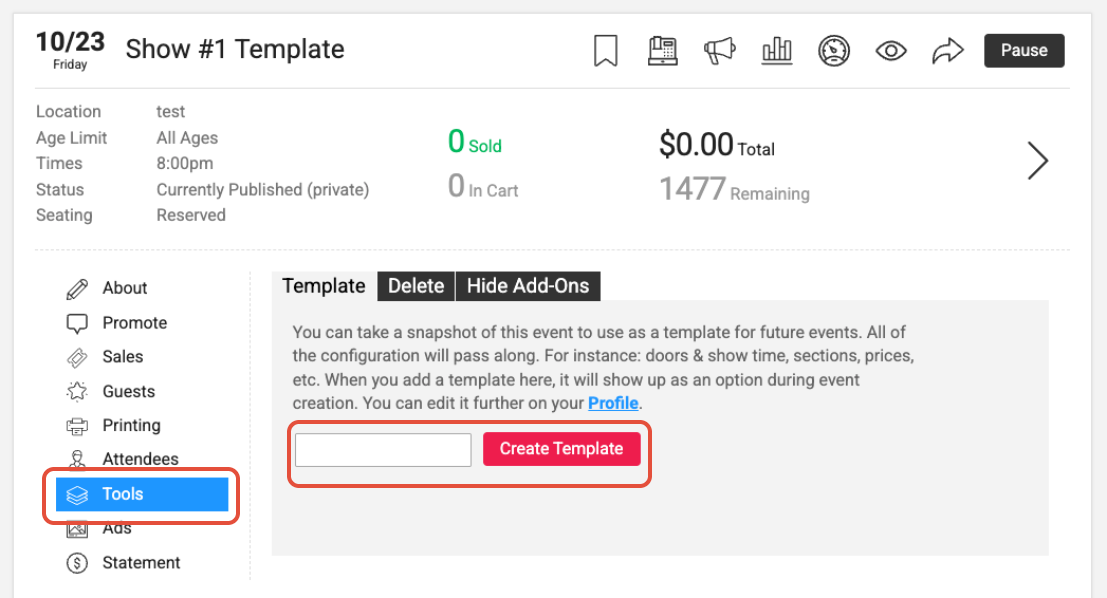
If you’ve built the same layout from a seat map more than once, head to the Tools tab to turn it into a reusable layout. Or email clients@prekindle.com and we’ll help you get it set up.
Seat Management
Use Event Manager
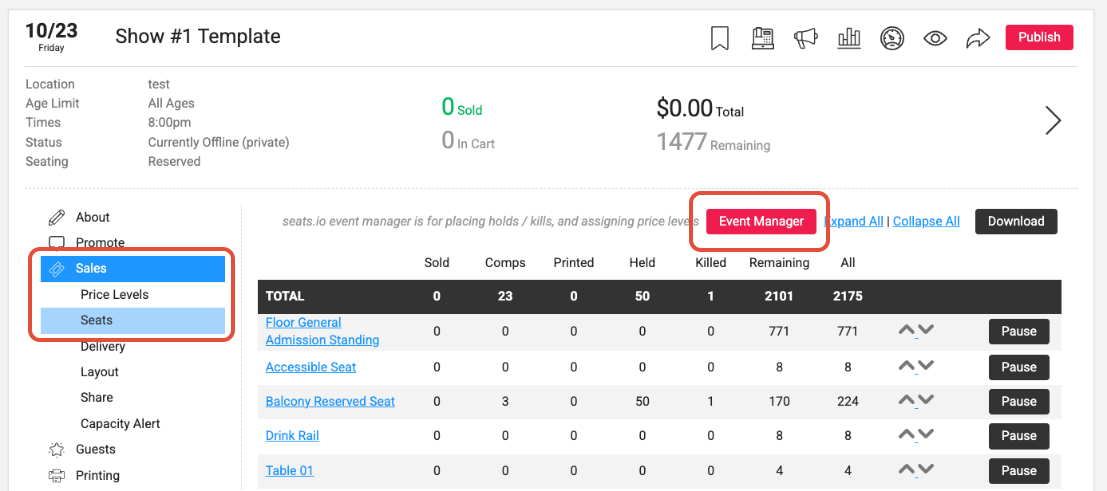
Assign price levels, place holds, and set kills. Open it from Sales; Seats; Event Manager.
Assign price levels
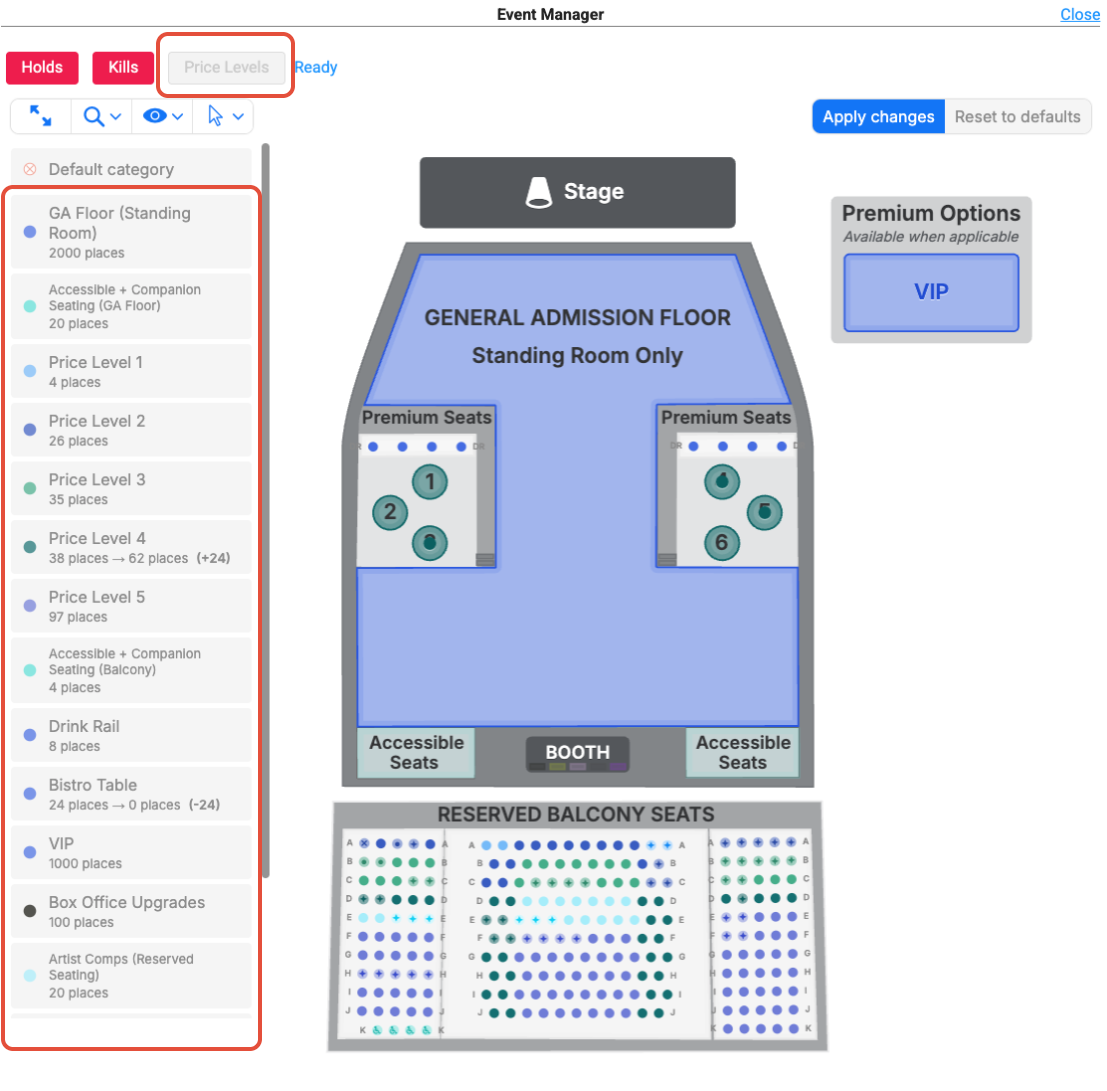
Pick a price level, then select the seats or sections that sell at that price. Every seat and area you sell needs a price level.
Place holds
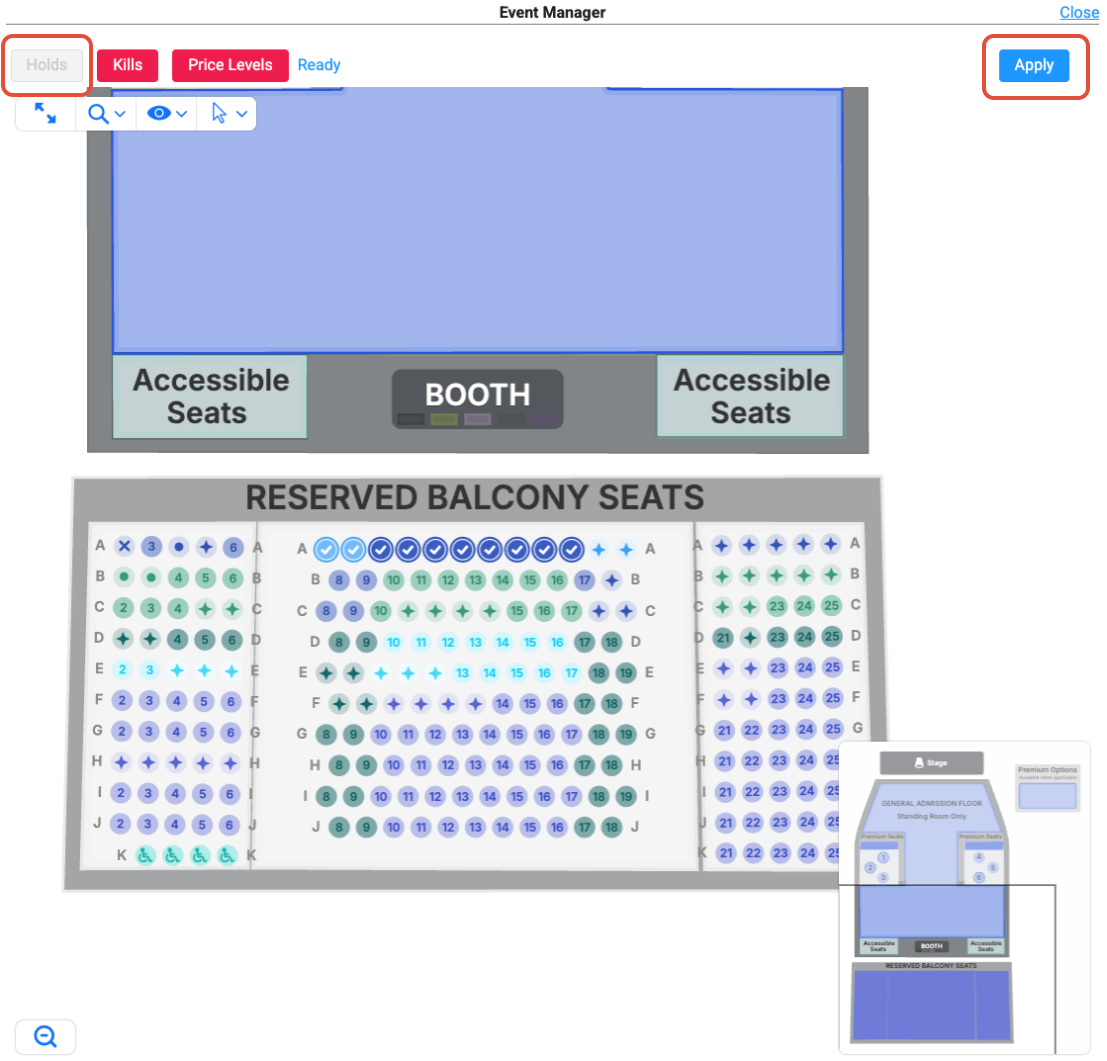
Set aside seats for the artist, production, sponsors, or accessible seating. Release them for sale when you no longer need them.
Set kills
Take seats off sale in the Kills tab. Choose Entirely for Sale or enter a number under Partially Not for Sale, then click Apply Changes.
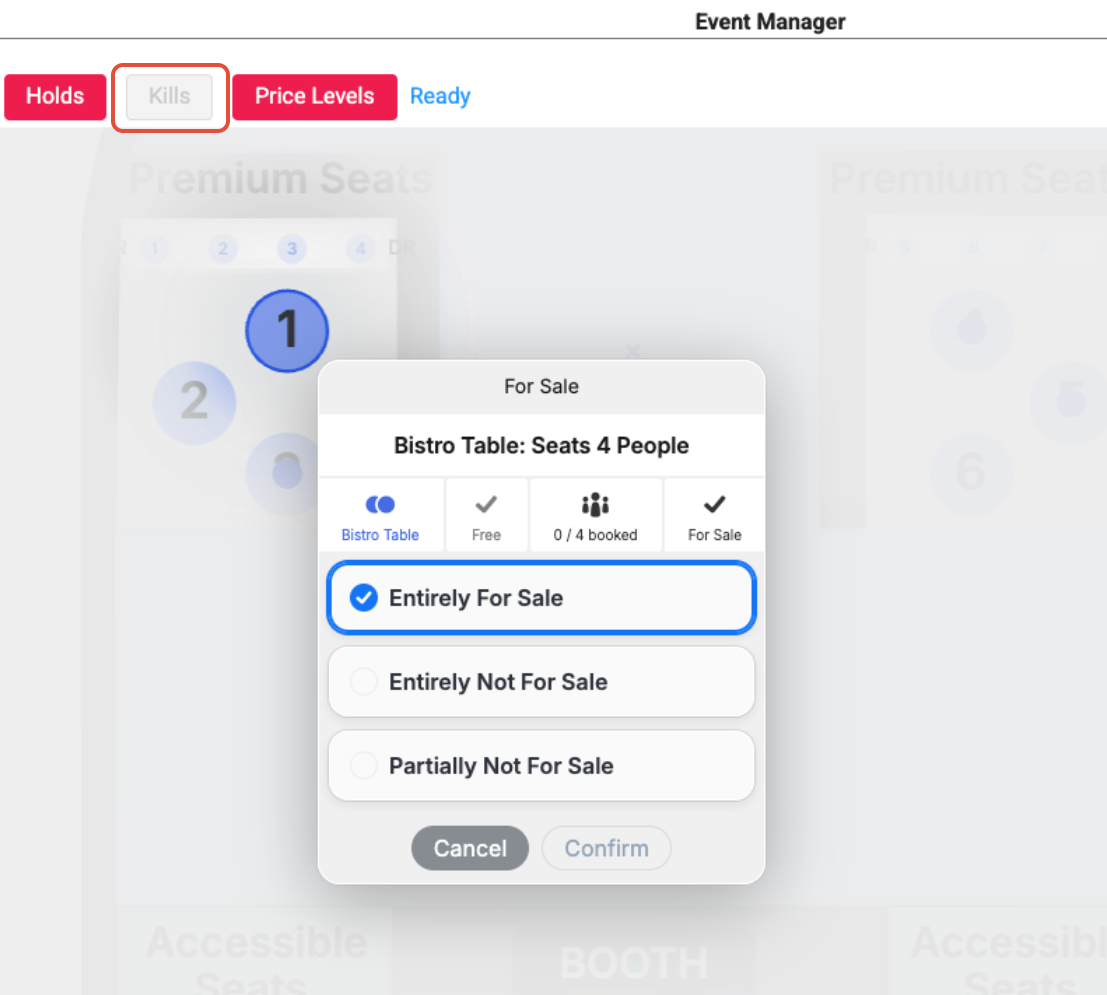
Kills are limited to 10 saves per event per day
You can click Apply Changes only 10 times per event per day. Make every change you need first, then save once. If you need to pause several sections, email clients@prekindle.com.
Changing a GA area's capacity
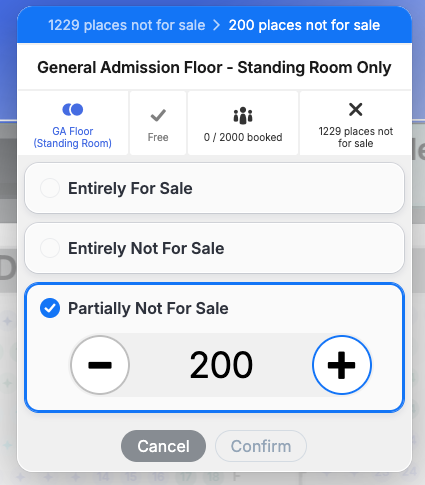
Update GA area capacity in the Kills tab in the Event Manager, then confirm the Seats tab matches exactly. Updating the Kills tab will automatically update the Seats tab, but not the other way around.
These numbers must always match. You can't exceed the capacity built into your map. To increase it, email us.
Decrease
1. Event Manager
In the Kills tab, click the section. Under Partially Not for Sale, enter how many tickets to remove, then click Apply Changes.
2. Seats tab
In Sales; Seats, click the same section, click Edit, and ensure the capacity matches. If it does not, update it to match it and click Save.
Increase
1. Event Manager
In the Kills tab, click the section. Choose Entirely for Sale or lower the Partially Not for Sale number, then click Apply Changes.
1. Seats tab
In Sales; Seats, click the same section, click Edit, and ensure the capacity matches. If it does not, update it to match it and click Save.
Example
Your map's Lawn holds 1,000, but you only want to sell 800 tonight. Enter 200 under Partially Not for Sale in the Kills tab. Click into the Sales; Seats tab that your capacity has updated to 800 for the Lawn.
Also in Sales; Seats
- Download the manifest for a full list of seats
- Set the Max Purchase Quantity per transaction per section
Learn how
Getting Started with Reserved Seating 2.0Managing GA Capacities
Guest List
Add Guests to the Guest List
Comps, artist guests, and sponsor tickets, with assigned seats.
What to do
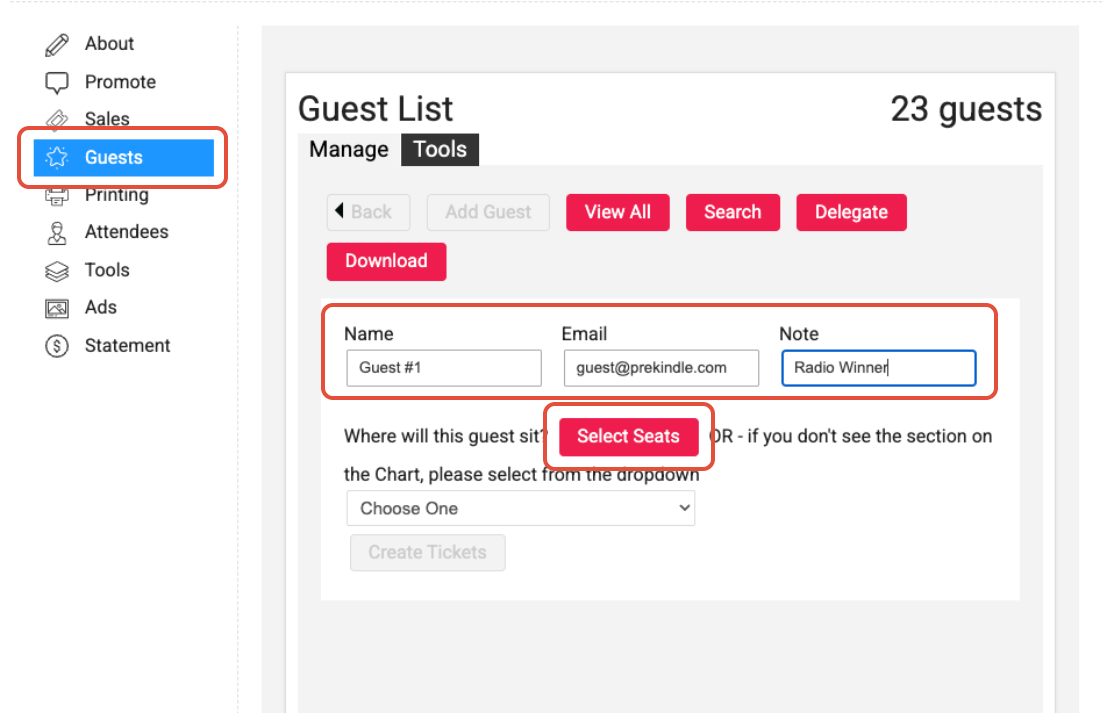
- From your Dashboard, click the event and open the Guests tab.
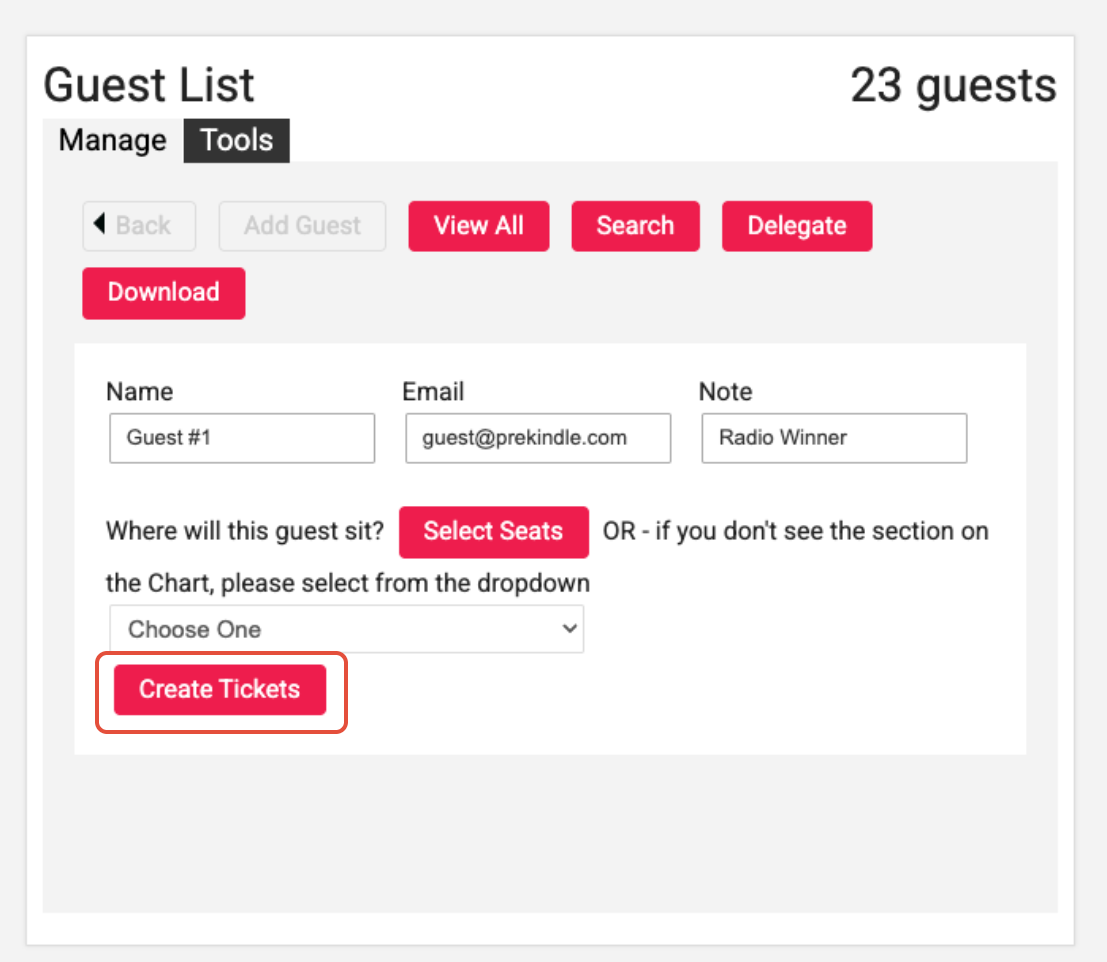
- Click Add Guest. Enter a Name (required), plus an Email and a Note if you want them.
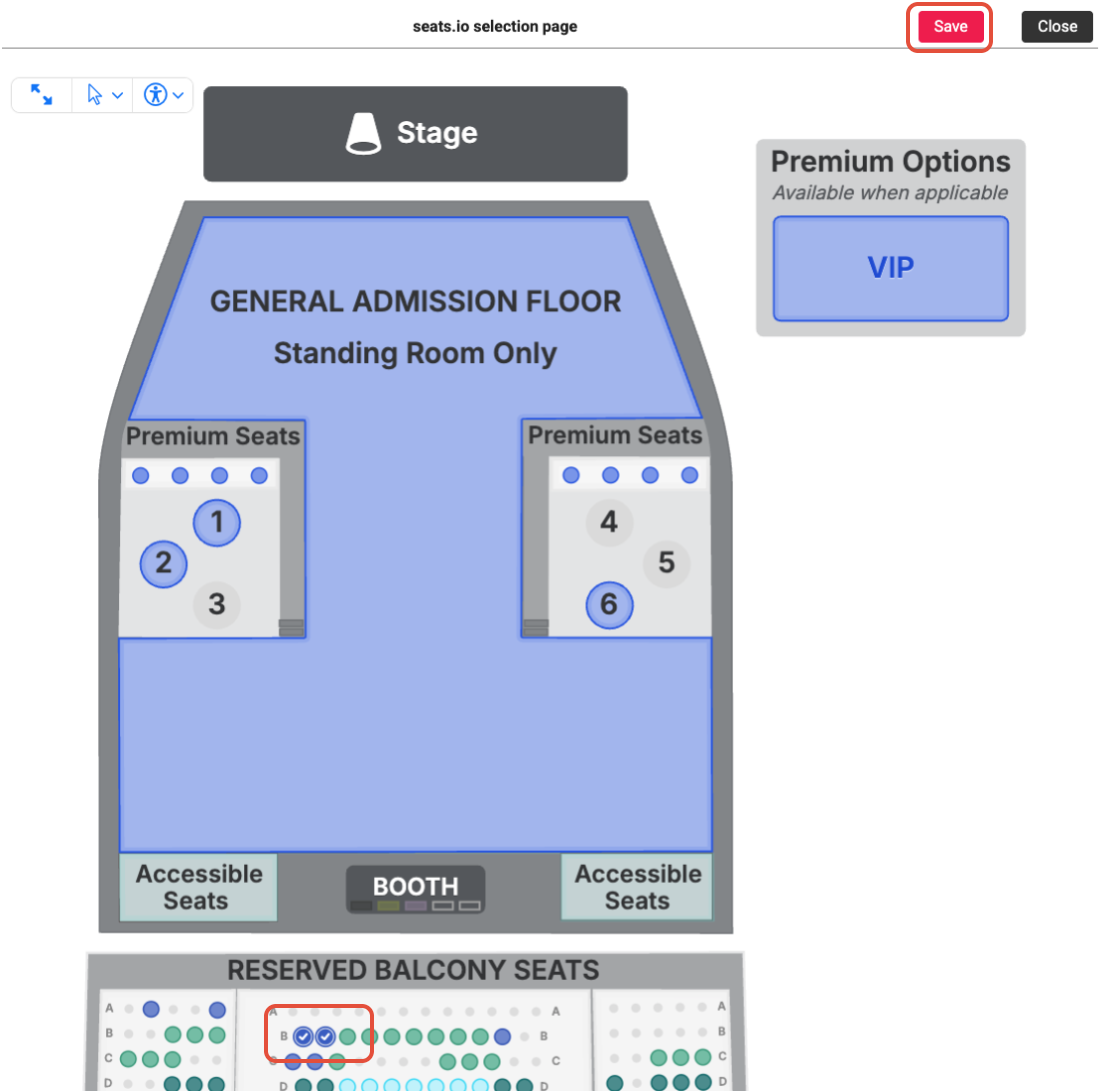
- For seats on the map: click Select Seats, click the seats or sections you want, click Save, then click Create Tickets.
- For areas not listed in the seatmap or held seats: choose the area from the dropdown, choose the ticket type and quantity, then click Create Tickets.
- The tickets stay on the guest list until you send them. Click Send to email them to the guest.
- To send every guest's tickets at once, open the Tools tab and click Deliver.
You can't delete sent tickets
After you email guest tickets, you can't delete them from the guest list. Wait to send until the list is final. To cancel a sent ticket, use the Box Office refund tools or email clients@prekindle.com.
Tip
Use the Note field to tag each guest, such as Artist, Sponsor, Staff, or Radio, so you can sort and count them before doors open.
Learn how
Adding Guests in Reserved Events
Troubleshooting
Common Mistakes and How to Fix Them
| If this happens | Do this |
|---|---|
| You need to change a map that's already on an event | Copy the chart, edit the copy, and email us to resync the event. |
| GA counts don't match between the Seats tab and Event Manager | Update both so they show the same number of sellable tickets. |
| You've used all 10 kill saves for today | Wait until tomorrow, or email us if the change can't wait. Next time, make every change first and save once. |
| You need more capacity than the map allows | Email us to raise the capacity on the map. |
| An event needs a different seat map | Don't change the dropdown in Sales; Price Levels. Email us to switch it. |
| A chart shows as MISSING | Email us to restore the chart or move its events to another chart. |
| You sent a guest ticket by mistake | Refund it in the Box Office, or email us. |
Save it. Use it every time.
Reserved Event Checklist
| ✓ | Task | Topic |
|---|---|---|
| ☐ | First seat maps and templates requested from clients@prekindle.com | Getting Started |
| ☐ | Right chart chosen, or a copy made and clearly named | Create a Seat Map |
| ☐ | Old and test charts archived; chart names follow one style | Edit, Organize, and Archive |
| ☐ | Event created from a template (repeat layout) or a seat map (new layout) | Build the Event |
| ☐ | Correct chart confirmed in Sales; Price Levels | Build the Event |
| ☐ | Every seat you'll sell has a price level | Event Manager |
| ☐ | Holds placed for artist, production, sponsors, and accessible seating | Event Manager |
| ☐ | Kills set, with all changes saved together | Event Manager |
| ☐ | GA capacities match between the Seats tab and Event Manager | Event Manager |
| ☐ | Most tickets per order set in Sales; Seats | Event Manager |
| ☐ | Guests added and tagged, with tickets sent only once the list is final | Guest List |
| ☐ | Unused holds released for sale | Event Manager |
| ☐ | Manifest downloaded before show day | Event Manager |
Related Articles
Ready to build your first seat map?
Our Client Success team will build your seat maps and templates and help you get your first reserved event on sale.
Was this article helpful?
That’s Great!
Thank you for your feedback
Sorry! We couldn't be helpful
Thank you for your feedback
Feedback sent
We appreciate your effort and will try to fix the article