Prekindle’s server-side conversion API tracking offers a more secure, accurate, and consistent way to track conversions than traditional client-side pixel tracking.
To connect Meta tracking, you’ll need to provide your Dataset ID and Access Token. Follow the steps below to locate and generate these credentials.
Connect Meta Tracking
- Navigate to Meta Events Manager. If you already have an existing dataset or pixel, continue to Step 3.
If you need to create a new dataset:
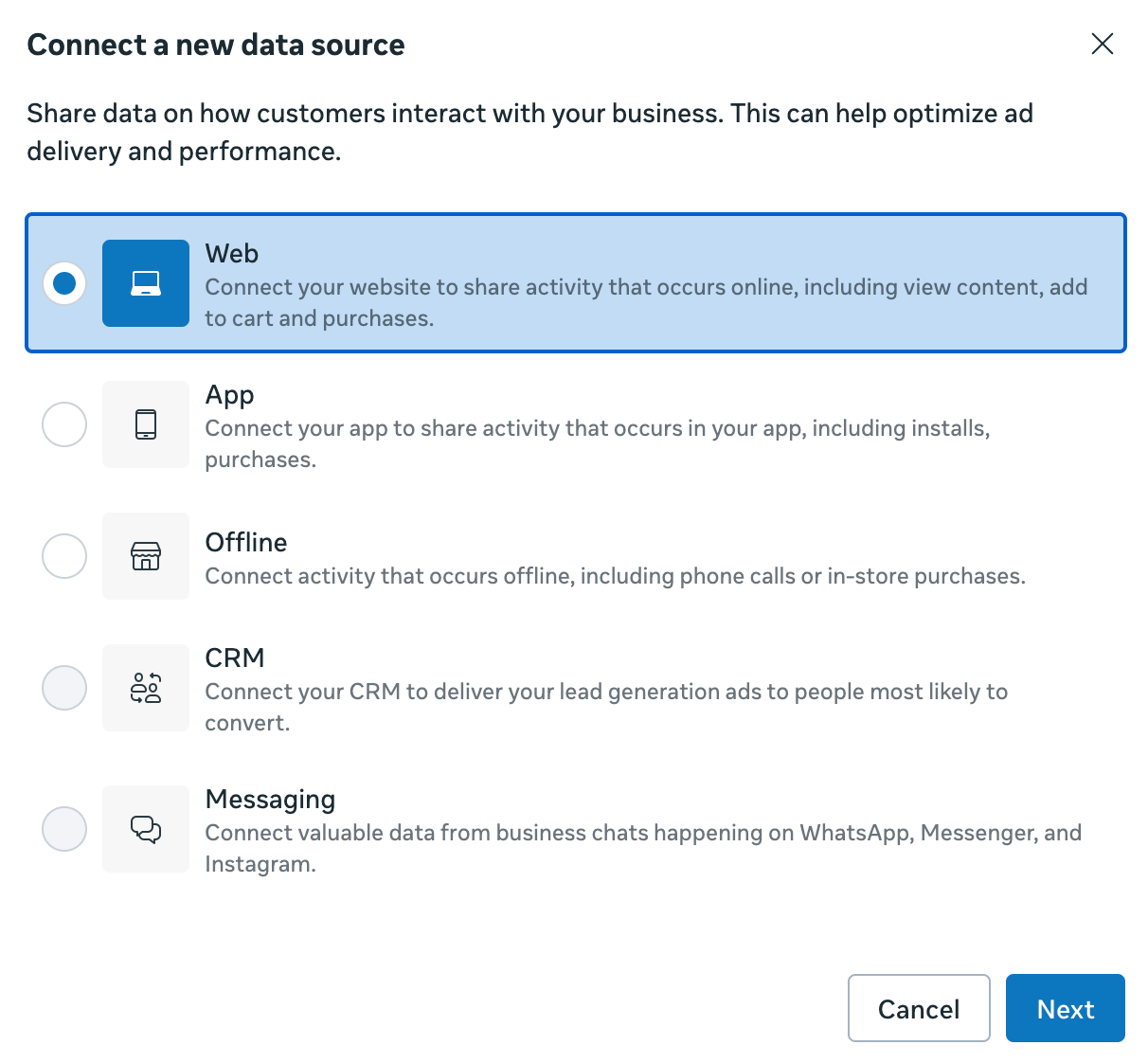
- Click Connect Data.
- Select Web and follow the prompts to create your dataset.
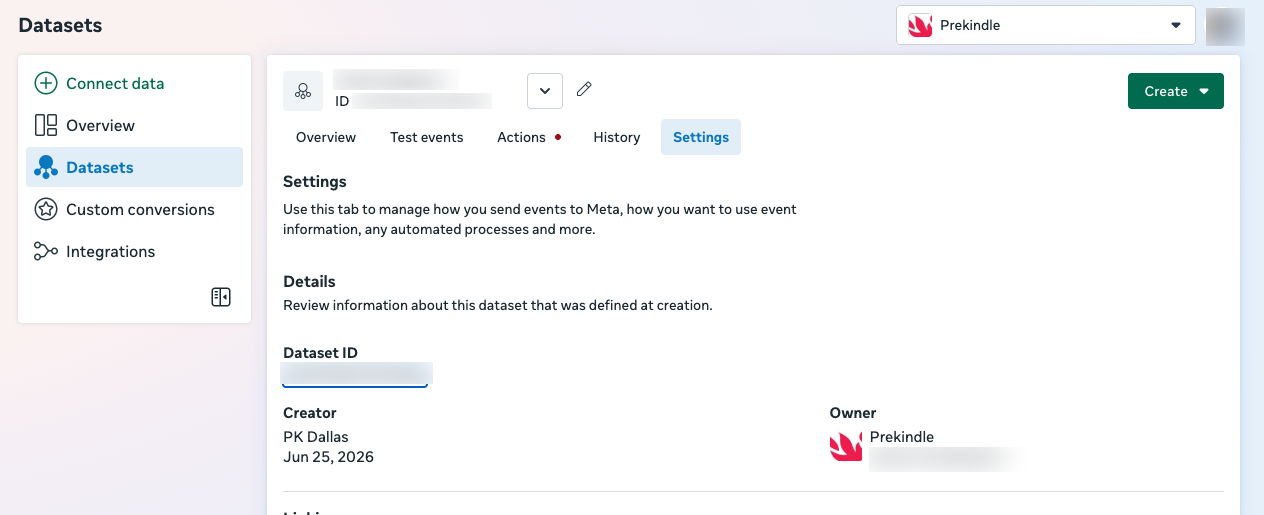
- Select the dataset you want to connect, then navigate to the Settings tab.
Locate and copy your Dataset ID to send to clients@prekindle.com.
Scroll down to the Conversions API section and click Generate Access Token.
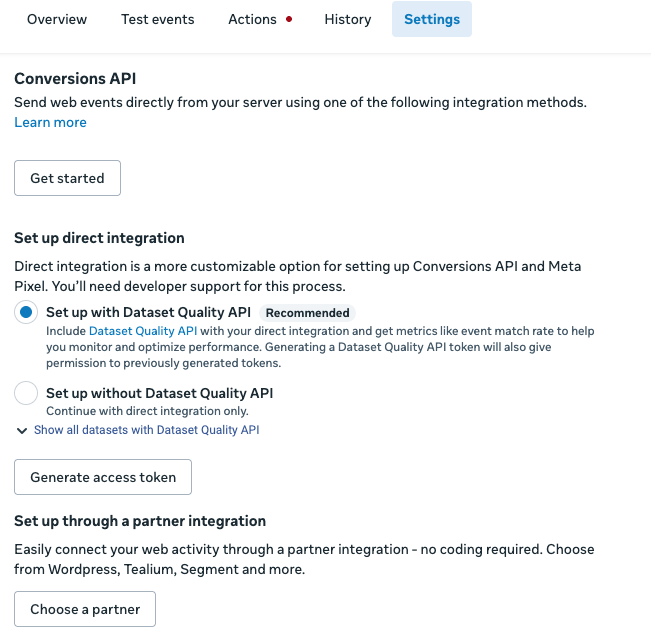
- Select the dataset you want to use, then click Generate Access Token again.
- Send your Dataset ID and Access Token to the Prekindle Client Success team at clients@prekindle.com.
Complete the Meta Integration
- Return to your dataset and select the Overview tab.
- Scroll to the Event Chart section and click Manage Integrations.
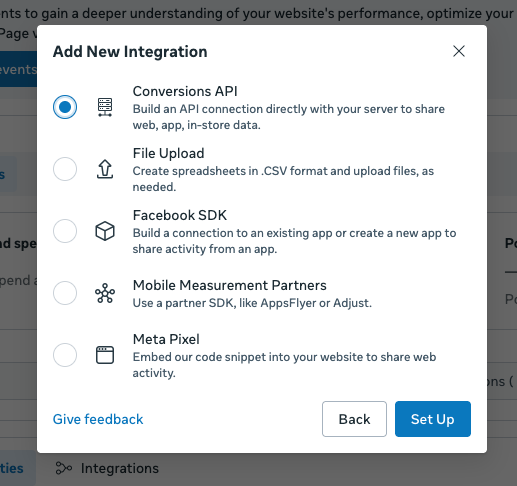
- Click Add New Integration, select Conversions API, and click Set Up.
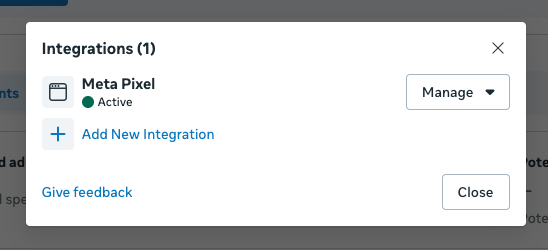
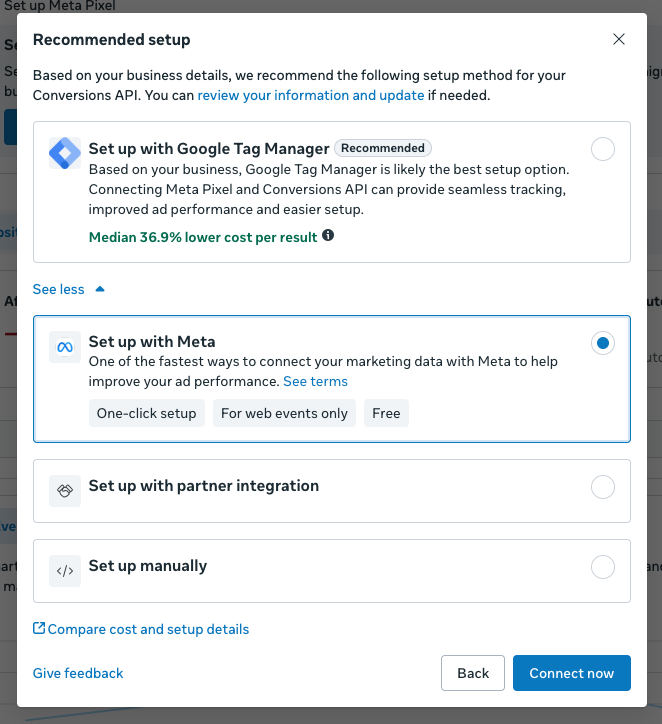
- Click Show More, select Set up with Meta, and then click Connect Now.
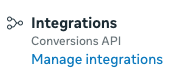
- Once Meta finishes the setup process, Conversions API should appear under your dataset’s integrations.
Tracking Note: Meta event data may take up to 30 minutes to appear in Events Manager. For example, activity from a 10:00 a.m. on-sale may not be visible until around 10:30 a.m. This reporting delay can occur with both Conversions API and traditional Meta Pixel tracking.
Was this article helpful?
That’s Great!
Thank you for your feedback
Sorry! We couldn't be helpful
Thank you for your feedback
Feedback sent
We appreciate your effort and will try to fix the article