You can print batches of physical tickets directly from Prekindle using the Printing tab.
Before you begin: You must have a BOCA ticket printer set up and connected. If you need a BOCA printer or need help getting one configured, contact the Prekindle Client Support team at clients@prekindle.com.
For more info on BOCA printing, setup, and troubleshooting, find more articles here.
Print Bulk Tickets
- Log in to your Prekindle account and open the event you need tickets for.
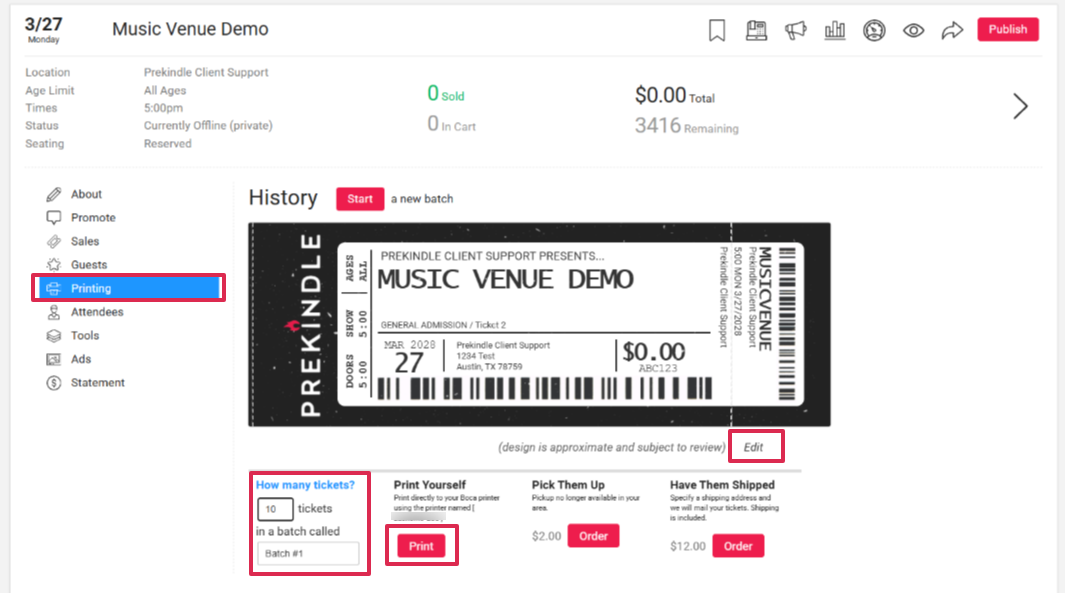
- Click the Printing tab to open the ticket printing tool.
- Enter the number of tickets you would like to print. You can also give the batch a name to make it easier to identify later.
- Review the ticket preview. The ticket will automatically populate with your event information.
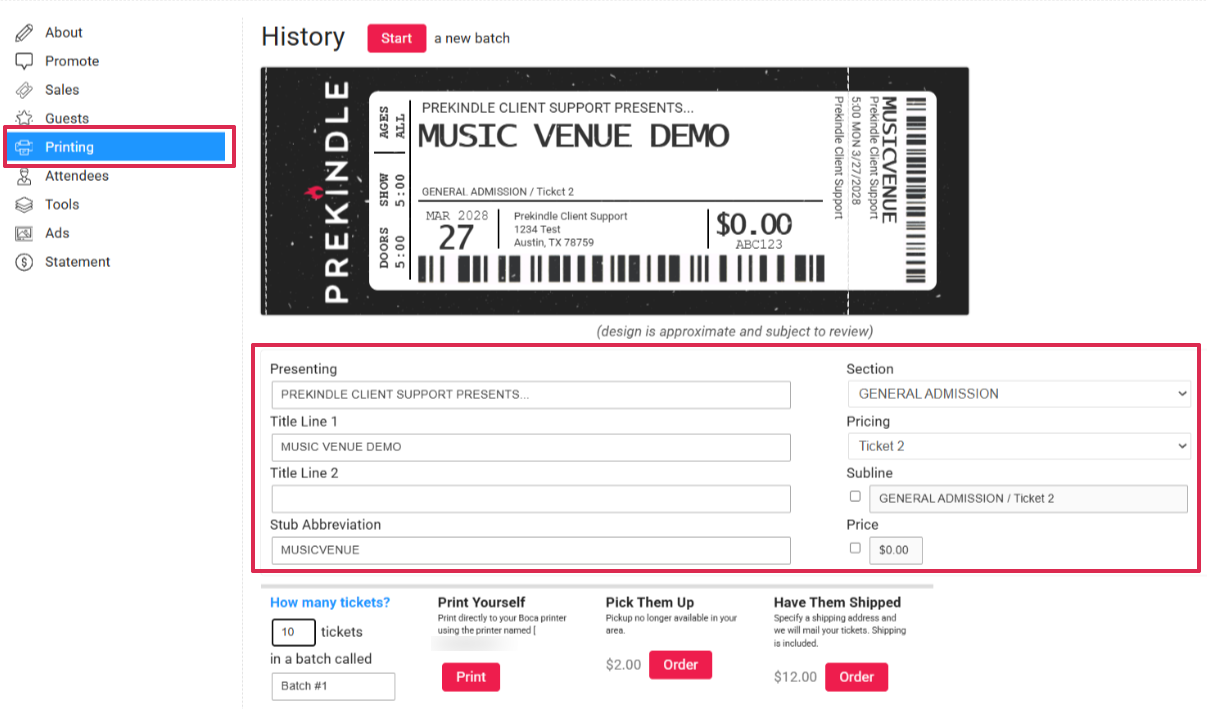
- If needed, click Edit to customize the information printed on the ticket. You can adjust items such as:
- Section
- Pricing
- Subline
- Printed price or COMP designation
- Once the ticket looks the way you want it, locate the Print Yourself section and click Print.
- Follow the prompts to send the batch to your connected BOCA printer.
Printing Reserved Tickets
Reserved tickets must be associated with specific seats before they can be printed.
To print reserved tickets, first Guest List the tickets or seats you need. Once they have been guest listed, you can print the tickets through the Box Office. See #13 in Box Office: Search.
Need Prekindle to Print Tickets for You?
If you do not have a BOCA printer or would prefer to have tickets printed and shipped to you, you can also place a bulk ticket order through Prekindle.
Was this article helpful?
That’s Great!
Thank you for your feedback
Sorry! We couldn't be helpful
Thank you for your feedback
Feedback sent
We appreciate your effort and will try to fix the article