For the quickest entry, Prekindle offers an iOS ticket scanner app that can be downloaded onto compatible Apple iOS devices. Use this app at your gates for quick entry and the most up-to-date attendance metrics.
PLEASE NOTE: The scanning app works on iOS devices with one or two camera lenses. It is not compatible with devices with three lenses.
Installing and Using the Event Entry App
To use the Prekindle Event Entry app on your own iOS device, follow the steps below:
Open the App Store and search for "Prekindle Event Entry." Click GET to download the app. If you have previously downloaded the Event Entry app, you will see a cloud icon instead of the GET button. Click the cloud icon to download the app to your current device.
- Once downloaded, locate the app on your iOS device and tap the icon to open it.


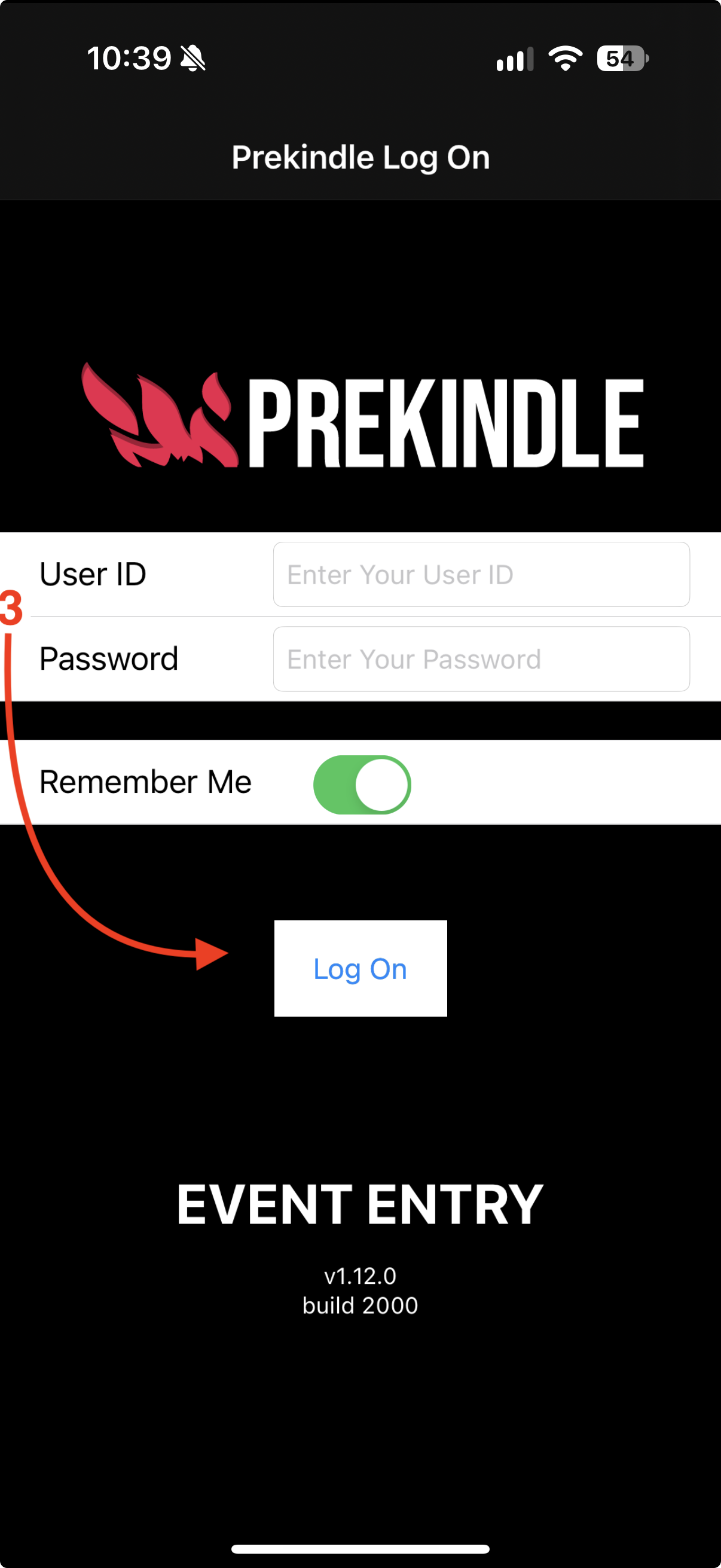
3. Enter your Prekindle username and password, then click LOG ON to access your events.
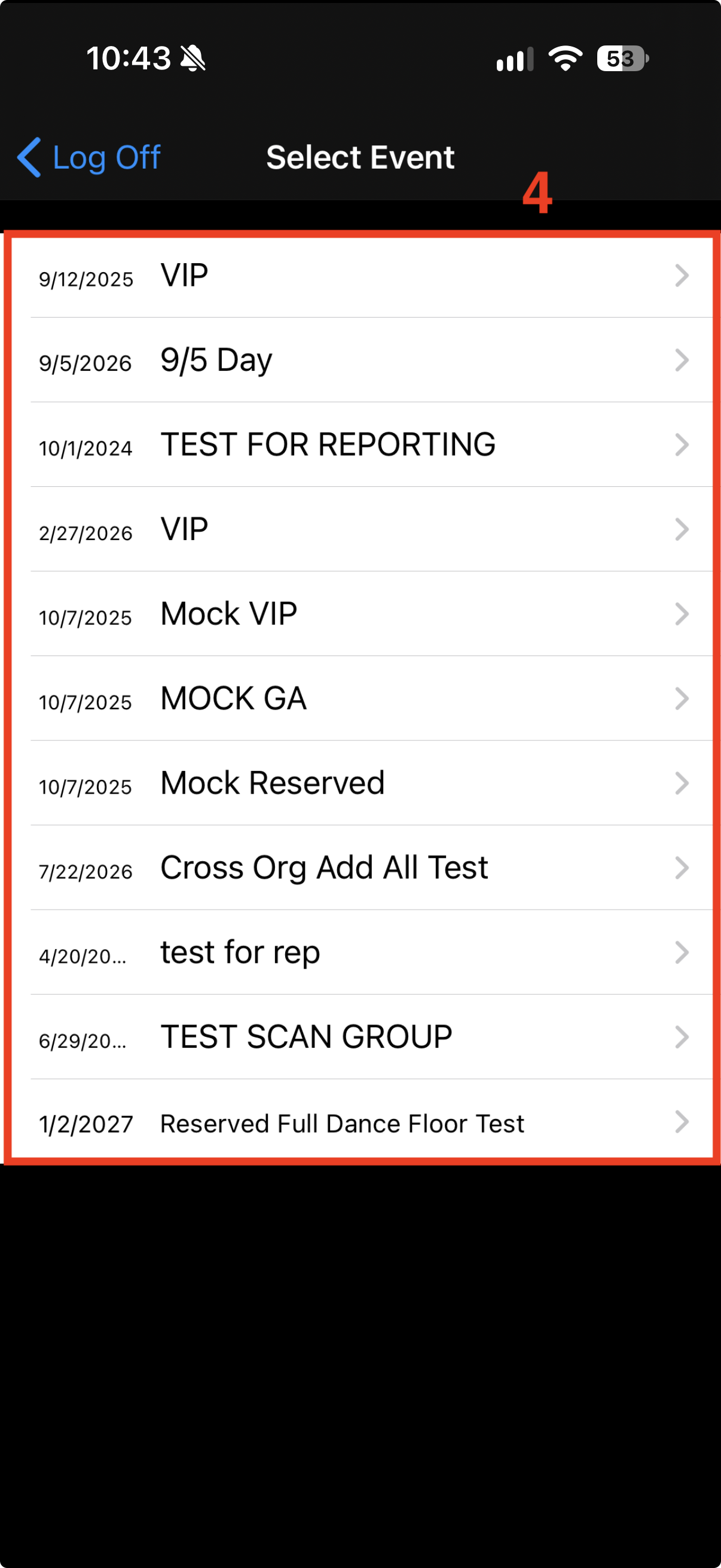
4. The app will load all of your events entered in the Prekindle system. Select the event you wish to scan tickets for from the list
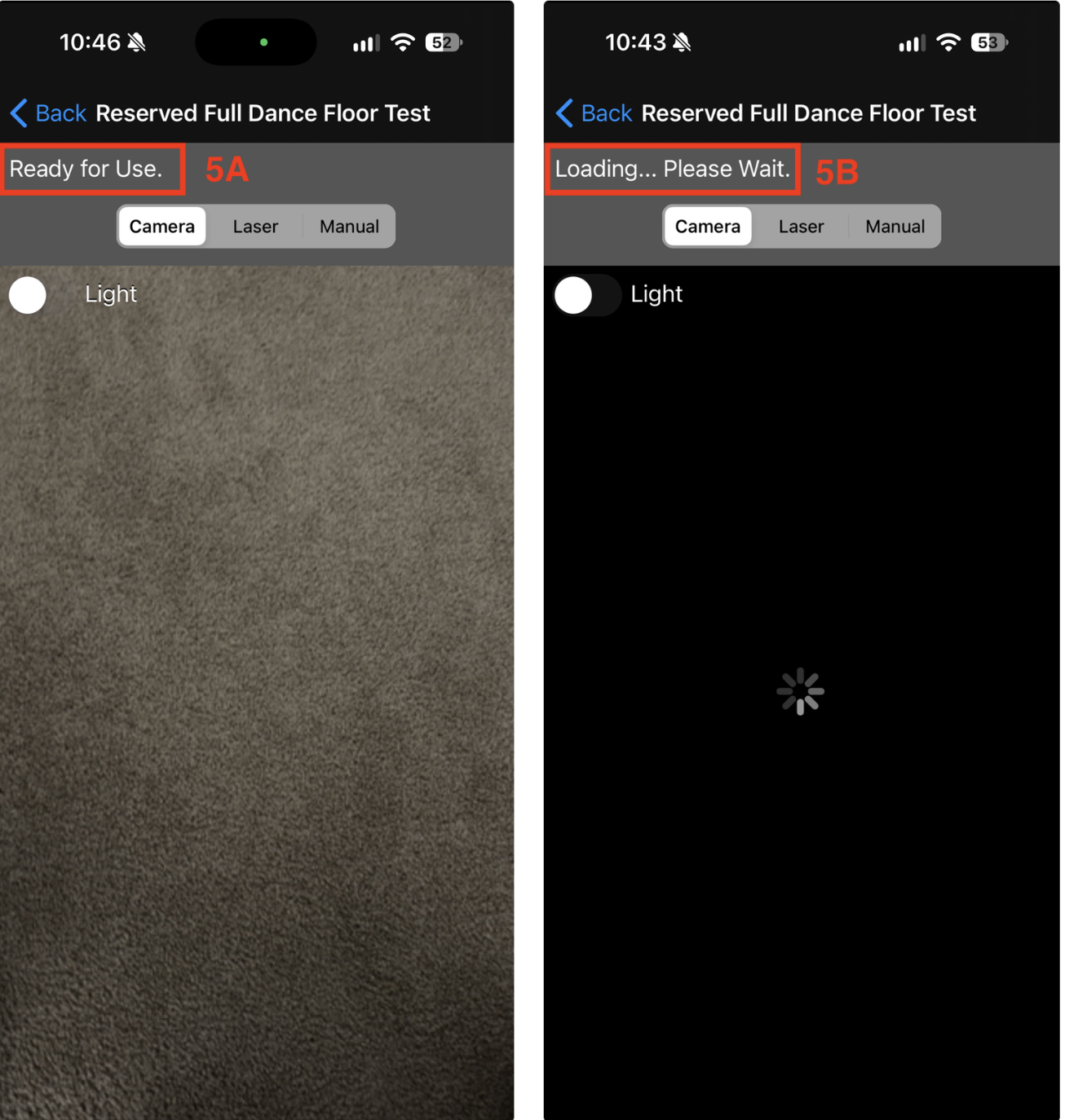
5. Your event must load before you can scan tickets for entry (A). Once loaded, the app will indicate that you are ready to scan (B). Larger events will take longer to load. You must also have cellular service or Wi-Fi to load event data.
6. When using an iPhone or iPod Touch to access the app, use the camera mode to scan tickets. This will use more battery power but is the most flexible option for scanning.
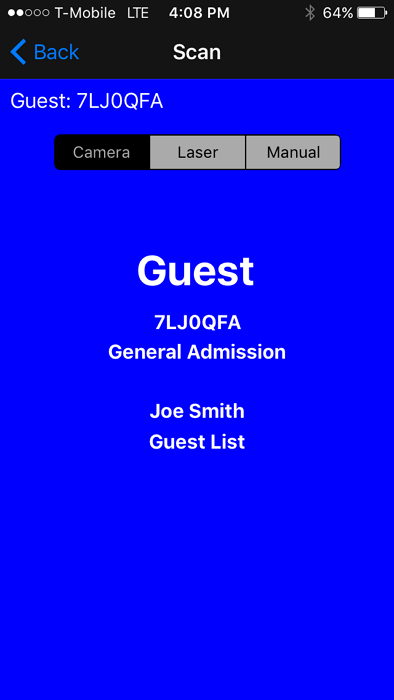
7. When a ticket is scanned, the screen will change color to indicate whether the ticket is valid. Valid tickets will display a green or blue screen:
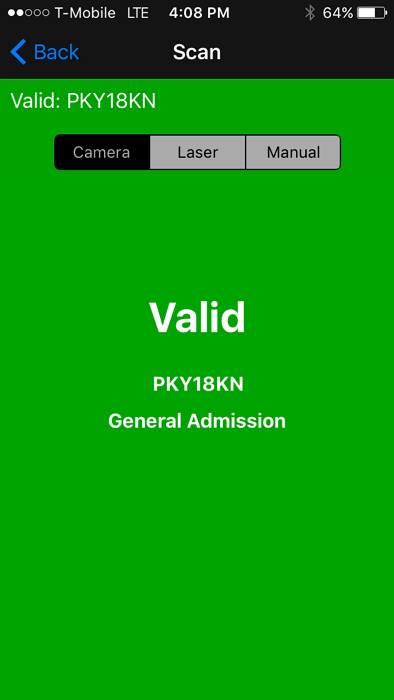
- Invalid tickets will display a Red screen:
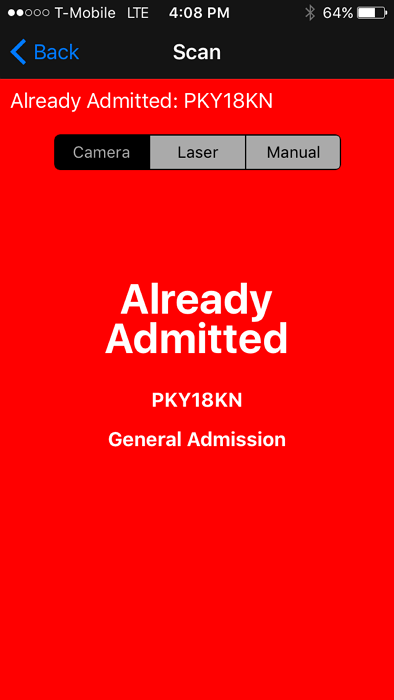
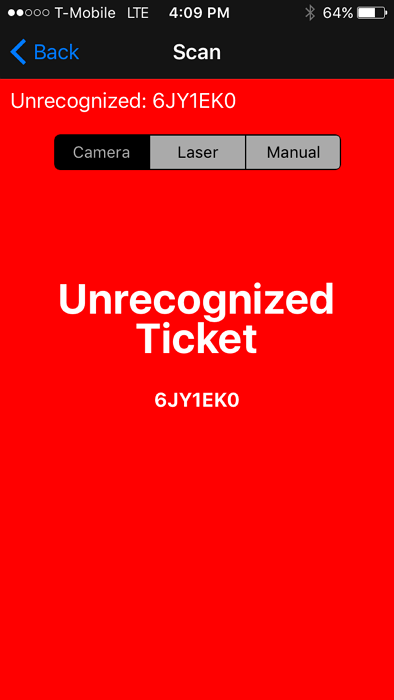


8. At this point, you are ready to scan. You may also turn on Guided Access to prevent scanner operators from leaving the selected event or app. Continue to Step 9 for Guided Access instructions.
For each of your events, you can view a Day-Of Metrics page with real-time tracking of sales, scans, and attendance.
Setting Up Guided Access
9. To turn on Guided Access on your iPhone, first go to the Accessibility settings under General. You can also access Guided Access by searching for it in the Settings search bar (A). Once in the Guided Access settings, turn Guided Access on by sliding the button until it shows green (B).


10. Once enabled in your phone settings, you will need to turn Guided Access on in the app. Start by opening the Prekindle Event Entry app and following Steps 1 through 6 to load the desired event.Once you are in the event and ready to scan, triple-click the Home button on the iPhone.
In Guided Access, circle the areas on the screen you would like disabled. For ease of entry, it is best to disable the Back and Manual buttons, as shown in the image below.
Once these areas are disabled, click Options to open the options menu. Here, you should enable the Sleep/Wake button, Volume buttons, and Touch by sliding each button until it shows green. Motion and Keyboard settings are optional. However, the Time Limit setting should be turned off.


Once these areas are circled and the options are set, click START to activate Guided Access mode.
At this point, you may be asked to enter a passcode. The code is all zeros (0). In this mode, you can still put the device to sleep, but you will not be able to power off the phone or leave the app to select another event.
To power off the phone, you must disable Guided Access by triple-clicking the Home button and selecting END in the top left corner.

Prekindle also offers scanner rentals, subject to availability. Prekindle offers two types of scanners: InfineaX Laser scanners and Mophie scanners.
For scanner rental quotes and availability information, please contact amanda@prekindle.com.
Was this article helpful?
That’s Great!
Thank you for your feedback
Sorry! We couldn't be helpful
Thank you for your feedback
Feedback sent
We appreciate your effort and will try to fix the article