Helpful Tips and Tricks for Using the Prekindle Event Entry App and Scanners
Scanning Tickets: When using camera mode, tickets can be scanned in any direction, including sideways or upside down.
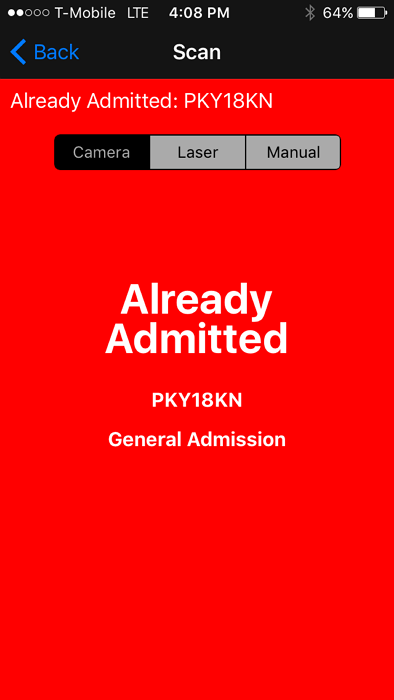
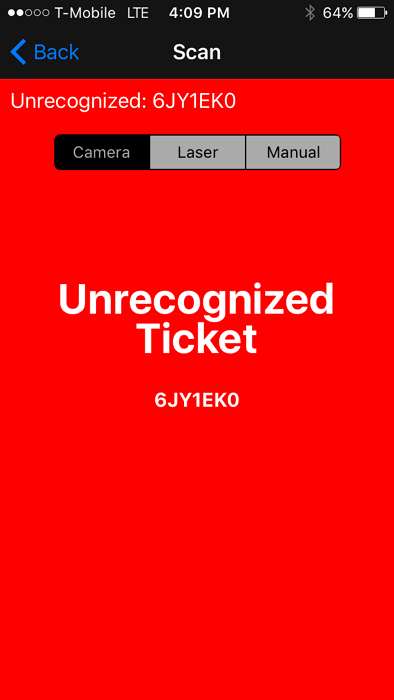
Invalid Tickets: There are two types of red screens:
ALREADY ADMITTED: The ticket has already been scanned for entry.
UNRECOGNIZED TICKET: If you receive this message, check the ticket date. The customer may have printed tickets from a previous year. If the tickets are for the current event, direct the customer to Will Call for assistance. Keep in mind that unrecognized tickets could also be fraudulent.
Invalid tickets will display a Red screen:
Additional Scanning Tips
Scanning Tickets from a Cell Phone: When scanning a ticket displayed on a cell phone, hold the scanner close to the screen, allow the camera to focus, and then slowly pull the scanner away. This will help the camera focus and scan the barcode more easily.
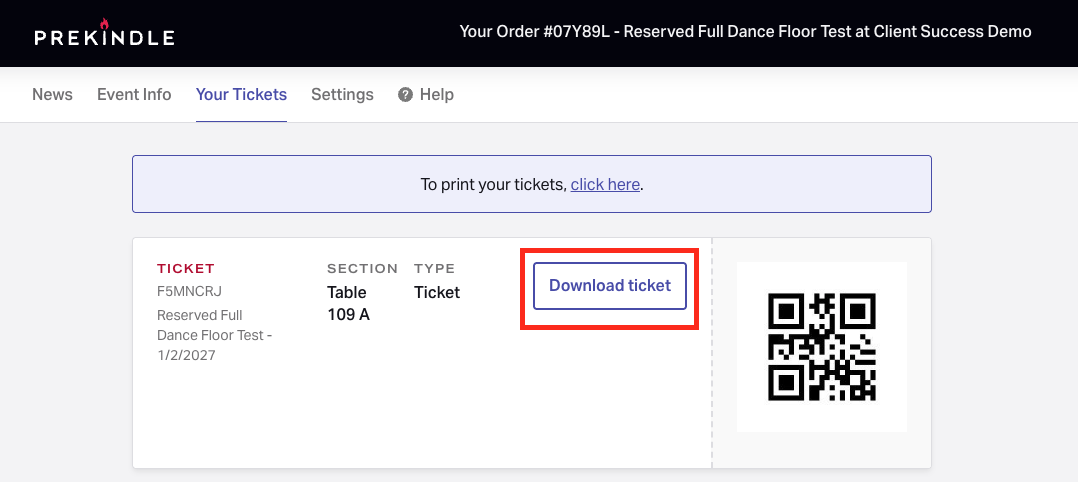
Customer Displays a Receipt Instead of a Ticket: If a customer presents their confirmation receipt instead of a ticket, have them click the Download button in their confirmation email to download their tickets with scannable barcodes.
We recommend asking the customer to step aside while their tickets download, as this can take anywhere from 2 seconds to 2 minutes, depending on their phone and cellular service.
See the image below for where to download tickets from the confirmation email.
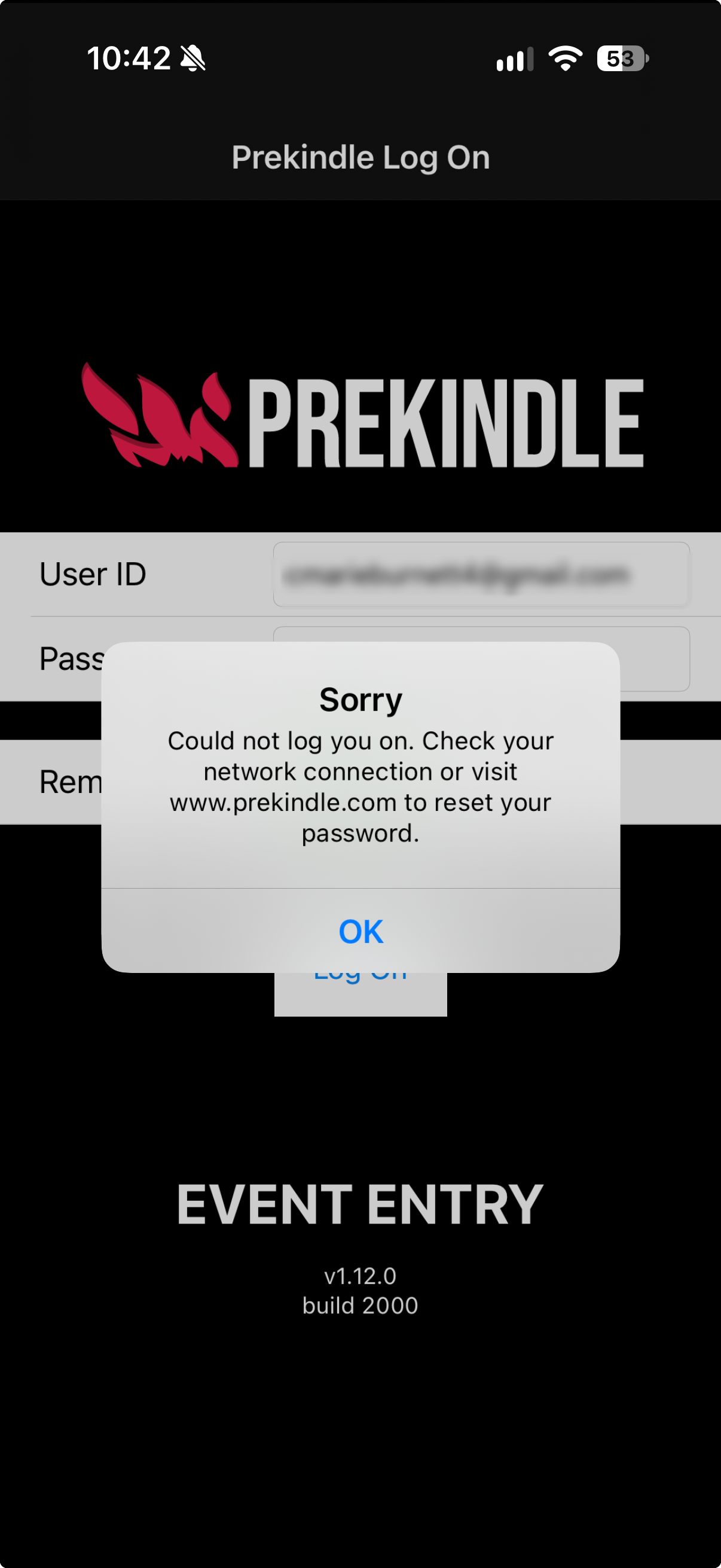
Network Connection Error: If you receive a Network Connection Error, check your device's connection status. This typically occurs when the scanner cannot connect to an active Wi-Fi network. Make sure the scanner or device is not in Airplane Mode and is connected to Wi-Fi.
Was this article helpful?
That’s Great!
Thank you for your feedback
Sorry! We couldn't be helpful
Thank you for your feedback
Feedback sent
We appreciate your effort and will try to fix the article