Overview
If a customer needs to transfer their ticket from one event to another, you can do this within your Prekindle dashboard by locating the original order and issuing the transfer. This process updates and resends the ticket to the new event while preserving the customer’s purchase details.
How to Transfer a Ticket
Log in to your Prekindle dashboard
Sign in with a role that has access to ticket management, such as Admin, Manager, or Box Office.
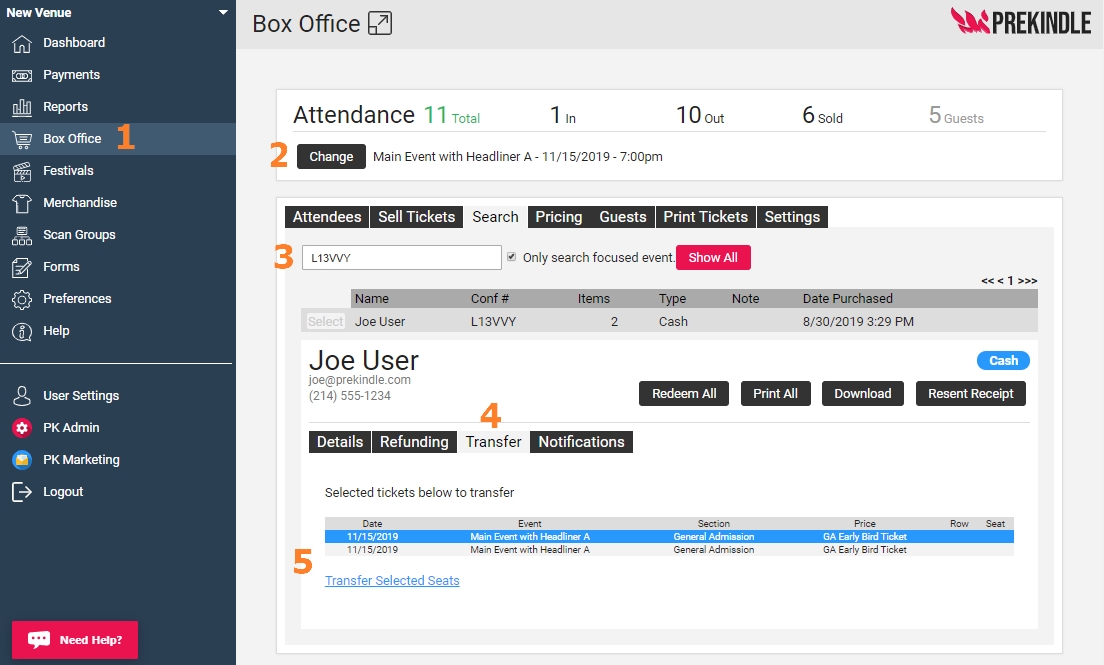
Open the Box Office
Navigate to the Box Office on the left side navigation page panel or by clicking the Cash Register Icon within the eventFocus on the Correct Event
Make sure the box office is focused on the event the customer originally purchased for by clicking the Change button and select the event from the calendar provided.Search for the Original Purchase
In the search field, use the following details to find the original purchase and Select the purchase when you find it:Customer name
Email address
Confirmation code
Ticket barcode
Click into the Transfer Tab
Select the Tickets to be Transferred
Click the ticket(s) to be transferred. Selected tickets will be highlighted in blue. Once selected, click the Transfer Selected Seats link.Select the Destination Event and Section and Complete Transfer
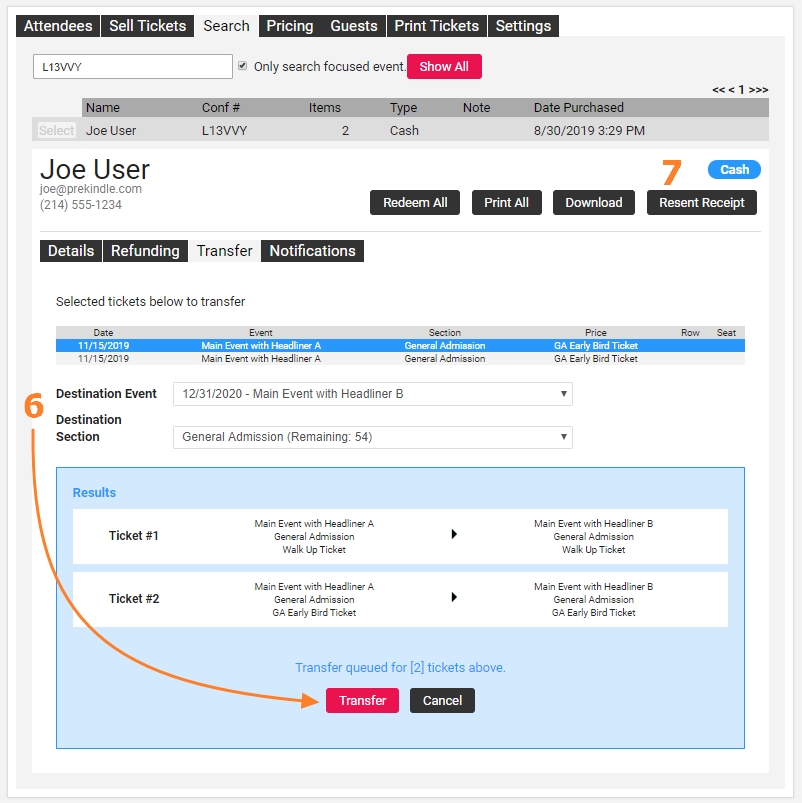
Select the Destination Event from the dropdown. If you are transferring within the same event, you will still need to select the event from the dropdown.
Select the Destination Section from the dropdown
If this is a reserved event, you will select the new section/seat from the map
Click Transfer; once the transfer is complete a message will show saying "Transfer completed successfully"
Resend Receipt
Once the transfer is complete, resend the receipt to send the new ticket(s) to the customer
Was this article helpful?
That’s Great!
Thank you for your feedback
Sorry! We couldn't be helpful
Thank you for your feedback
Feedback sent
We appreciate your effort and will try to fix the article